Gmail എന്താണ്? (What is Gmail?) Gmail സംബന്ധിച്ച വിശദമായ സ്റ്റഡി നോട്ട്സ്
1️⃣ Gmail എന്താണ്? (What is Gmail?)
Gmail Google നൽകുന്ന ഒരു സൗജന്യ Email Service ആണ്.
ഇത് ഉപയോഗിച്ച് നിങ്ങൾക്ക്:
Email അയക്കാം (Send)
Email സ്വീകരിക്കാം (Receive)
ഫയലുകൾ (documents, photos, PDFs) attach ചെയ്യാം
Online meetings, calendar events, subscriptions എന്നിവ manage ചെയ്യാം
👉 ഇന്ന് Education, Office, Business, Government എല്ലായിടത്തും Gmail അനിവാര്യമാണ്.
2️⃣ Gmail എങ്ങനെ തുറക്കാം? (How to open Gmail?)
Step-by-step:
Browser തുറക്കുക (Chrome recommended)
Address bar-ൽ ടൈപ്പ് ചെയ്യുക: www.gmail.com
Google account-ൽ Sign in ചെയ്യുക
Email ID
Password
Login കഴിഞ്ഞാൽ Inbox തുറക്കും
📌 Mobile-ൽ Gmail App ഉപയോഗിച്ചും ചെയ്യാം
3️⃣ Gmail Inbox – പ്രധാന വിഭാഗങ്ങൾ (Left Sidebar)

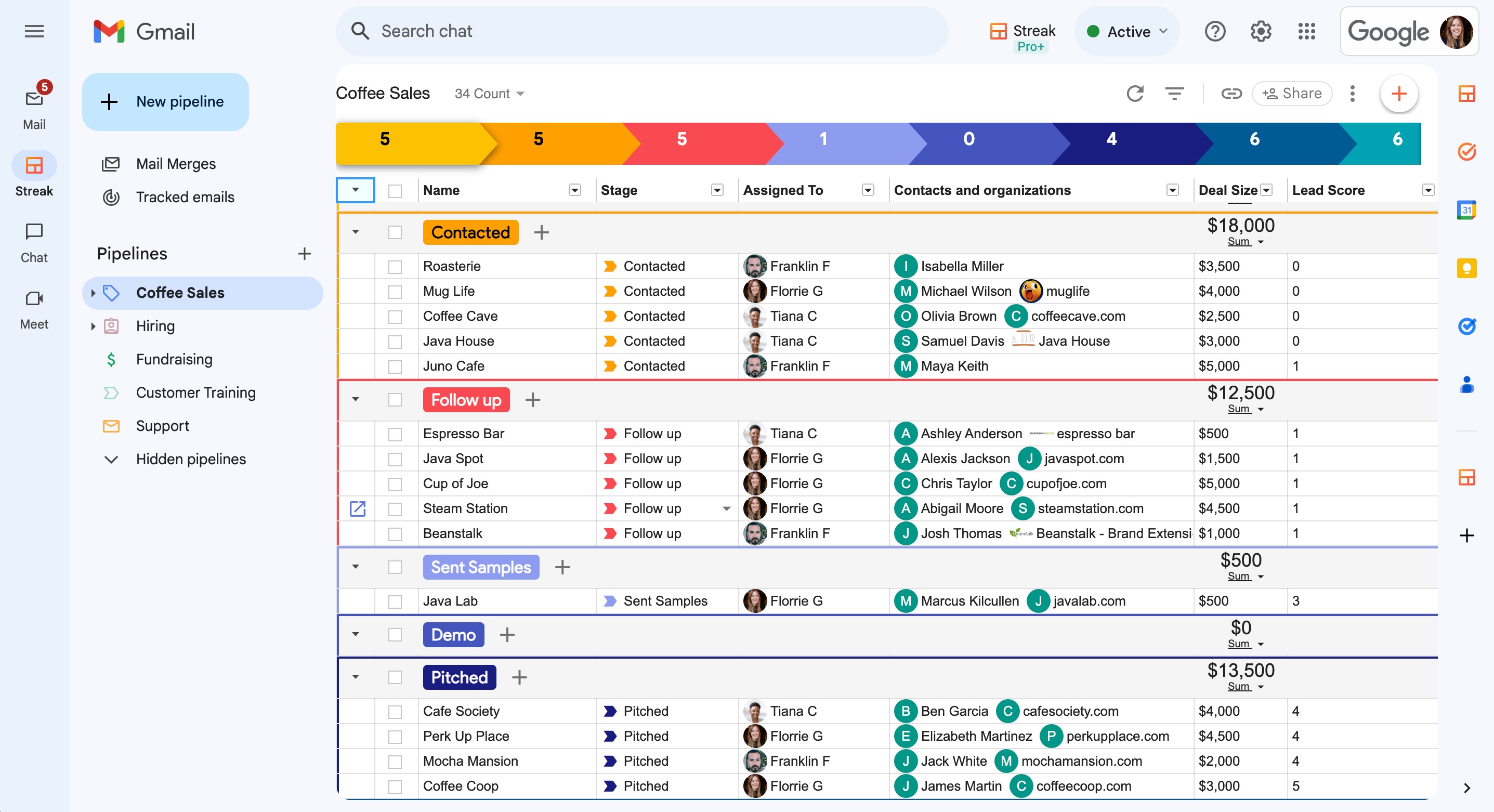
📥 Inbox
എല്ലാ പുതിയ Emails ഇവിടെ വരും
⭐ Starred
പ്രധാന Emails ⭐ mark ചെയ്താൽ ഇവിടെ കാണാം
⏰ Snoozed
പിന്നീട് വായിക്കാനായി temporarily hide ചെയ്ത Emails
❗ Important
Gmail സ്വയം പ്രധാനമെന്ന് തിരിച്ചറിയുന്ന Emails
📤 Sent
നിങ്ങൾ അയച്ച Emails
📝 Drafts
എഴുതിക്കൊണ്ടിരുന്നെങ്കിലും അയക്കാത്ത Emails
🚫 Spam
ആവശ്യമില്ലാത്ത / സംശയാസ്പദ Emails
🗑️ Trash
Delete ചെയ്ത Emails (30 ദിവസം വരെ)
4️⃣ Inbox Categories (Tabs)


🛒 Promotions
ഓഫറുകൾ, ads, shopping mails
👥 Social
Facebook, Instagram, LinkedIn notifications
🔔 Updates
Bills, receipts, bank alerts
💬 Forums
Group discussions, mailing lists
🛍️ Purchases
Online order confirmations, invoices
5️⃣ Other Important Options
📅 Scheduled
Future date/time-ലേക്ക് schedule ചെയ്ത Emails
📂 All Mail
Inbox + Archived mails (എല്ലാം)
🔔 Manage Subscriptions
Newsletter / unwanted mails unsubscribe ചെയ്യാൻ
🏷️ Manage Labels
Folder പോലുള്ള system
➕ Create New Label
Custom folder സൃഷ്ടിക്കാൻ
6️⃣ COMPOSE – Email എഴുതുന്നത് (Compose Mail)


✉️ Compose Button
New Email എഴുതാൻ
7️⃣ Compose Window – ഓരോ ഭാഗവും വിശദമായി
To
Email അയക്കുന്ന വ്യക്തിയുടെ Email ID
CC (Carbon Copy)
മറ്റുള്ളവർക്ക് information-നായി mail പോകാൻ
BCC (Blind Carbon Copy)
മറ്റുള്ളവർക്ക് കാണാതെ mail അയക്കാൻ
Subject
Mail-ന്റെ വിഷയം (Mandatory)
Message Column
Mail-ന്റെ പ്രധാന content
8️⃣ Formatting Options (Text Tools)
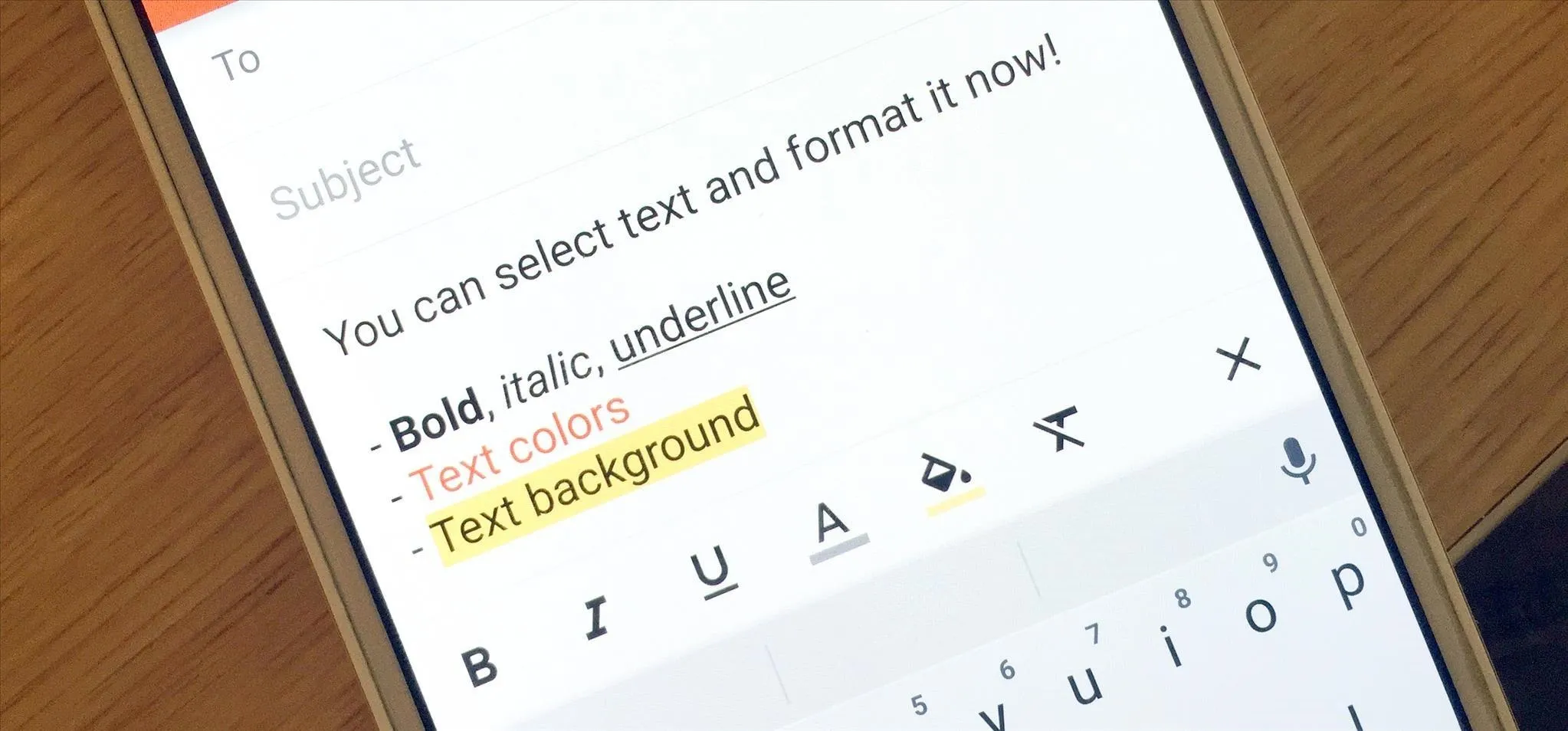

🔤 Font
Text style മാറ്റാൻ
B – Bold
I – Italic
U – Underline
🎨 Text Colour
📏 Align (Left / Center / Right)
🔢 Numbering
🔘 Bullets
➡️ Indent More
⬅️ Indent Less
❝ Quote
Reply content highlight ചെയ്യാൻ
Strikethrough
Cancelled text കാണിക്കാൻ
❌ Clear / Remove Formatting
Default format-ലേക്ക് തിരിച്ചു പോകാൻ
9️⃣ Sending Options
📩 SEND
Mail അയക്കാൻ
⏳ Schedule Send
Date & Time set ചെയ്ത് later അയക്കാൻ
🔗 Attach & Insert Options

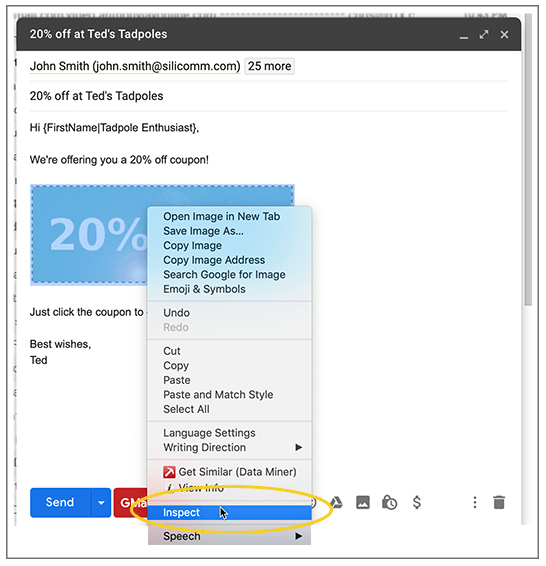
📎 Attach File
Computer-ൽ നിന്ന് file attach ചെയ്യാൻ
🔗 Insert Link
Website link add ചെയ്യാൻ
😊 Insert Emoji
Emojis add ചെയ്യാൻ
☁️ Insert files using Drive
Google Drive-ൽ നിന്നുള്ള files
🖼️ Insert Photo
Images add ചെയ്യാൻ
🔐 Advanced Compose Options
🔒 Toggle Confidential Mode
Expiry date + password protection
✍️ Insert Signature
Name, designation auto add ചെയ്യാൻ
🖥️ Default to Full Screen
Big compose window
🧾 Plain Text Mode
Formatting ഇല്ലാതെ simple text
Mail print ചെയ്യാൻ
✔️ Spell Check
Spelling mistakes correct ചെയ്യാൻ
🏷️ Label
Mail-ന് label assign ചെയ്യാൻ
📅 Calendar & Meeting Options


🕒 Set up a time to meet
Meeting schedule ചെയ്യാൻ
📄 Create a Booking Page
Others book time with you
⏱️ Propose Times You Are Free
Available slots share ചെയ്യാൻ
📆 Create an Event
Google Calendar event create ചെയ്യാൻ
📌 പഠനത്തിന് ഉപദേശം (Study Tips)
Practice: Daily 1 mail compose
CC, BCC difference പ്രത്യേകം പഠിക്കുക
Attachments + Drive usage practice ചെയ്യുക
Labels ഉപയോഗിച്ച് Inbox organize ചെയ്യുക
താഴെ Gmail – Practice Assignments hands-on practice ചെയ്യാൻ തയ്യാറാക്കിയതാണ്.
ഇത് Beginner → Intermediate → Advanced എന്ന ക്രമത്തിലാണ്.
(Computer / Laptop ഉപയോഗിച്ച് ചെയ്യുക)
📘 GMAIL PRACTICE ASSIGNMENTS
🟢 LEVEL 1 – BEGINNER (Basic Usage)
Assignment 1: Gmail Login & Inbox Observation
www.gmail.com തുറക്കുക
Gmail account-ൽ login ചെയ്യുക
താഴെ പറയുന്ന folders കണ്ടെത്തി തുറക്കുക:
Inbox
Sent
Drafts
Spam
Trash
✍️ Write:
Inbox-ൽ എത്ര mails ഉണ്ട്?
Spam folder-ൽ mail ഉണ്ടോ?
Assignment 2: Simple Email Compose
Task: ഒരു simple email എഴുതുക
To: നിങ്ങളുടെ സ്വന്തം email ID
Subject: My First Gmail Practice
Message:
Hello,
This is my first Gmail practice email.
Thank you.
👉 SEND ചെയ്യുക
Assignment 3: Draft Mail
Compose തുറക്കുക
Subject എഴുതുക: Draft Practice
Message എഴുതുക
SEND ചെയ്യരുത്
Drafts folder തുറന്ന് mail verify ചെയ്യുക
🟡 LEVEL 2 – INTERMEDIATE (Office-Oriented)
Assignment 4: CC & BCC Practice
Task: Same mail multiple persons-ലേക്ക് അയക്കുക
To: Your email
CC: Friend’s email
BCC: Another email
Subject: CC and BCC Practice
✍️ Question:
CC & BCC തമ്മിലുള്ള വ്യത്യാസം എഴുതുക (2 sentences)
Assignment 5: Formatting Practice
Compose mail ചെയ്ത് താഴെ ചെയ്യുക:
One sentence Bold
One sentence Italic
One sentence Underline
One word change text colour
Use bullet points
Subject: Formatting Practice
Assignment 6: File Attachment
Compose mail
Attach a file (PDF / Image / DOC)
Subject: File Attachment Practice
SEND
✍️ File size എത്രയാണ്?
Assignment 7: Labels
Create New Label: Practice Mail
Inbox-ൽ ഉള്ള ഒരു mail-ന് ഈ label apply ചെയ്യുക
Label folder തുറന്ന് mail check ചെയ്യുക
🔵 LEVEL 3 – ADVANCED (Professional Use)
Assignment 8: Schedule Send
Compose mail
Subject: Scheduled Mail Test
Schedule send – Tomorrow 10:00 AM
Scheduled folder verify ചെയ്യുക
Assignment 9: Confidential Mode
Compose mail
Turn ON Confidential Mode
Set expiry date (1 day)
SEND
✍️ Confidential mode ഉപയോഗിക്കുന്നതിന്റെ 2 advantages എഴുതുക
Assignment 10: Google Drive Attachment
Upload a file to Google Drive
Compose mail
Insert file using Drive option
SEND
Assignment 11: Spam & Unsubscribe
Promotions folder തുറക്കുക
ഒരു unwanted mail select ചെയ്യുക
Unsubscribe / Report Spam ചെയ്യുക
✍️ Spam mail എന്താണ്? (Short answer)
🔴 LEVEL 4 – CALENDAR & MEETING
Assignment 12: Create Calendar Event
Gmail → Create Event
Event name: Gmail Practice Meeting
Date & Time set ചെയ്യുക
Save
Assignment 13: Propose Times
Compose mail
Use “Propose times you’re free”
Send to your email
Check received mail
Assignment 14: Signature
Gmail Settings → Signature
Create signature:
Name:
Course:
Institution:
Compose mail and verify signature
📝 FINAL ASSESSMENT TASK
Mini Project:
Create a professional email
Include:
Subject
Proper greeting
Formatted content
Attachment
Signature
Schedule Send
Lesson-1: ഓപ്പറേറ്റിംഗ് സിസ്റ്റം മുതൽ ടാസ്ക്ബാർ വരെ, വിൻഡോസ് ഡിസ്പ്ലേ ഭാഷ ഇംഗ്ലീഷിലേക്ക് മാറ്റുന്നത്
MS Word-ൽ Date Format മാറ്റുന്നത് എങ്ങിനെ?
എം.എസ്. വേർഡ് (MS Word): ഹോം ടാബ് ഫീച്ചറുകൾ
MS Word-ലെ INSERT Menu-യിൽ വരുന്ന എല്ലാ പ്രധാന ഓപ്ഷനുകളും
സി.വി.യിൽ ചിത്രം ചേർക്കുന്നതിനുള്ള വഴികൾ
INR (Indian Rupee) ₹ ചിഹ്നം Word ലും Excel ലും എങ്ങിനെ ടൈപ്പ് ചെയ്യാം
MS Word – “Design” ടാബ്: പൂർണ്ണ പാഠം
MS Word: പേജ് ലേഔട്ട് മെനു (Page Layout Menu)
MS WORD – SHORTCUT KEYS & WINDOWS – SHORTCUT KEYS
Google Docs – ഒരു പരിചയം, എന്താണ് Google Docs?
Google Sheets – ഒരു പരിചയം What is Google Sheets?
Google Forms – ഗൂഗിൾ ഫോംസ്: വിവര ശേഖരണത്തിനുള്ള ലളിതമായ ഉപകരണം
AI Tools – ഒരു പരിചയം, ChatGPT എന്താണ്? Prompt എന്നത് എന്താണ്?

Comments
Post a Comment