MS Word-ൽ ടെക്സ്റ്റ് ഒരു ബോക്സിനുള്ളിൽ എഴുതാൻ How to type a Text in a Box in MS Word
MS Word-ൽ ടെക്സ്റ്റ് ഒരു ബോക്സിനുള്ളിൽ എഴുതാൻ സാധാരണയായി ഉപയോഗിക്കുന്ന രണ്ട് എളുപ്പമായ മാർഗങ്ങൾ താഴെ പറയുന്നു.
മാർഗം 1: Text Box ഉപയോഗിച്ച് (ഏറ്റവും എളുപ്പം)
ഘട്ടങ്ങൾ:
MS Word തുറക്കുക
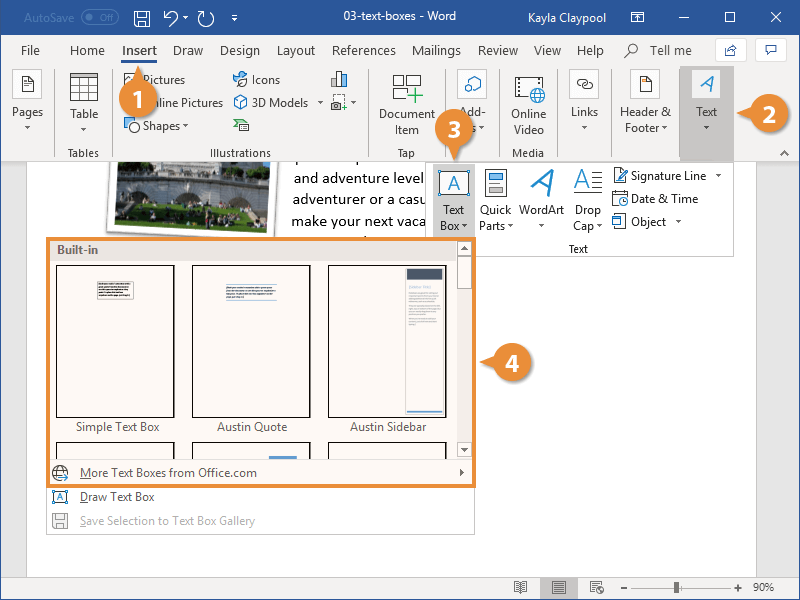
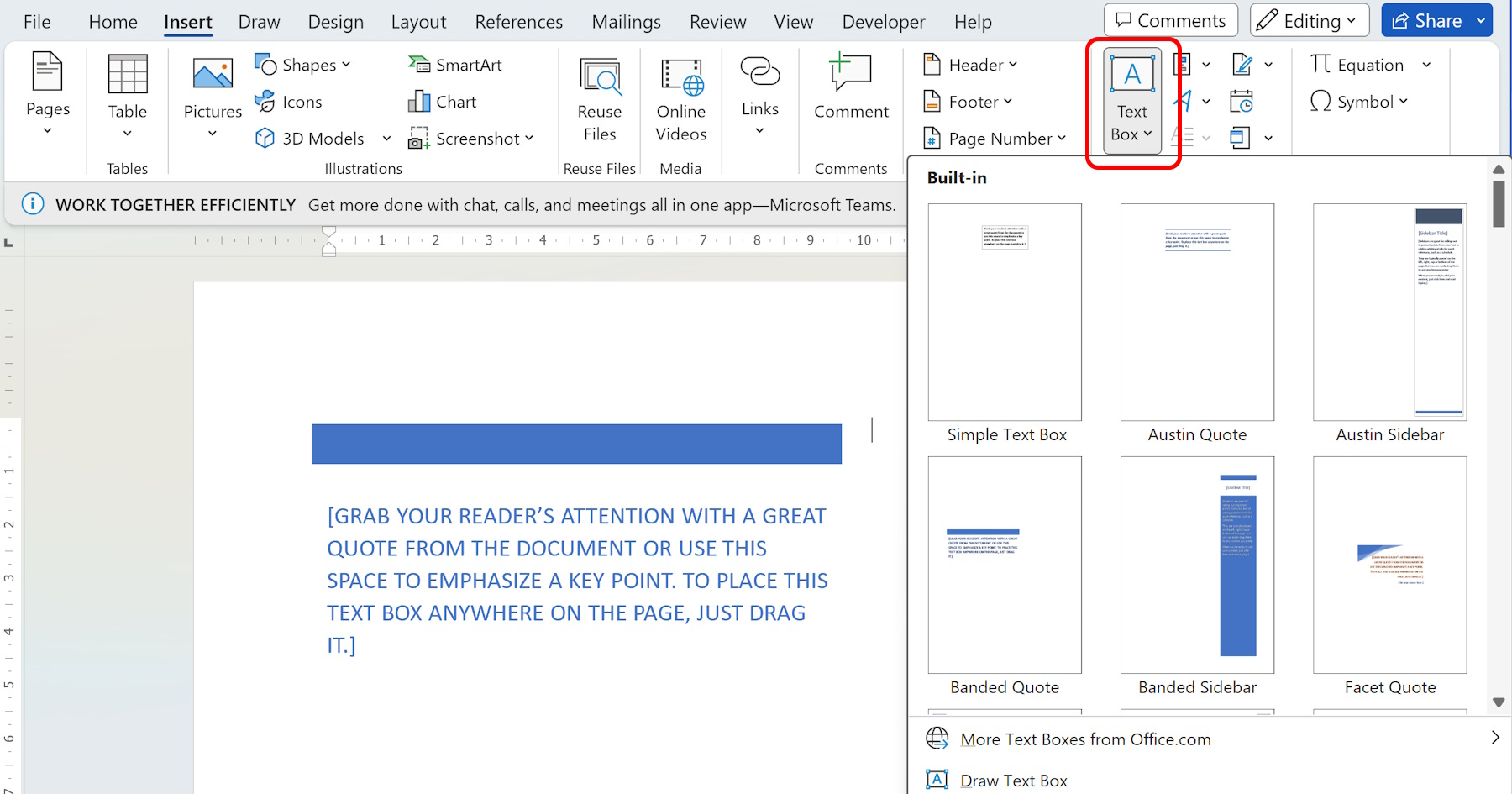
മുകളിലെ Insert ടാബിൽ ക്ലിക്ക് ചെയ്യുക
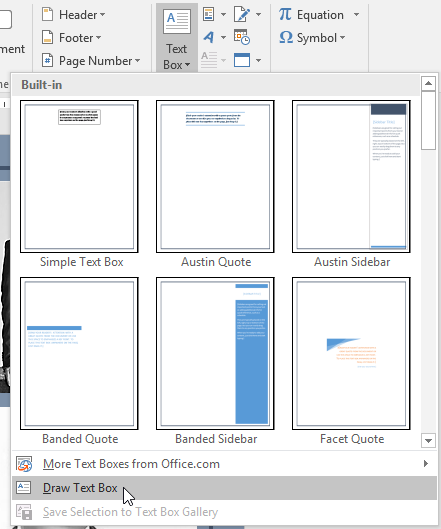
Text Box എന്ന ഓപ്ഷനിൽ ക്ലിക്ക് ചെയ്യുക
Draw Text Box തിരഞ്ഞെടുക്കുക
മൗസ് ഉപയോഗിച്ച് പേജിൽ ഒരു ബോക്സ് വരയ്ക്കുക
ആ ബോക്സിനുള്ളിൽ ക്ലിക്ക് ചെയ്ത് ടെക്സ്റ്റ് ടൈപ്പ് ചെയ്യുക
Text Box രൂപം മാറ്റാൻ:
ബോക്സിൽ Right Click → Format Shape
Shape Fill → നിറം മാറ്റാം / No Fill തിരഞ്ഞെടുക്കാം
Shape Outline → ബോർഡറിന്റെ നിറവും കട്ടയും മാറ്റാം
👉 Certificates, notices, highlights, headings എന്നിവയ്ക്ക് Text Box ഏറ്റവും അനുയോജ്യം.
മാർഗം 2: Paragraph Border ഉപയോഗിച്ച്
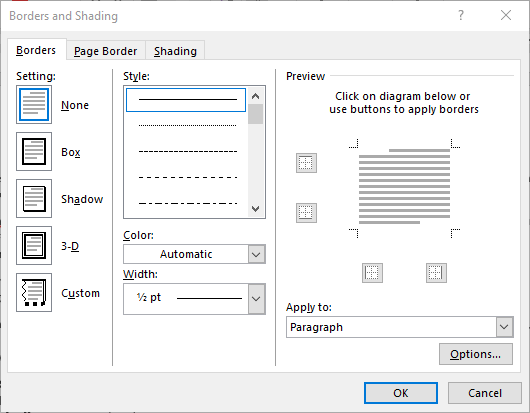
ഘട്ടങ്ങൾ:
ആദ്യം ടെക്സ്റ്റ് ടൈപ്പ് ചെയ്യുക
ആ ടെക്സ്റ്റ് Select ചെയ്യുക
Home ടാബിലേക്ക് പോകുക
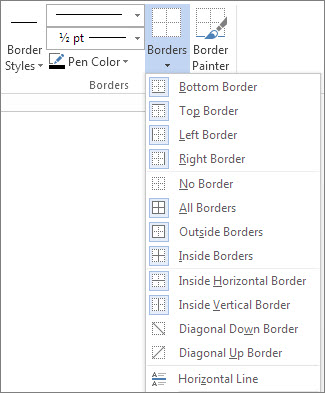
Borders ഐക്കണിൽ ക്ലിക്ക് ചെയ്യുക
Outside Borders തിരഞ്ഞെടുക്കുക
👉 ഇതിലൂടെ ടെക്സ്റ്റിന്റെ ചുറ്റും ഒരു ലളിതമായ ബോക്സ് വരും.
മാർഗം 3: Table ഉപയോഗിച്ച് (ഫോം / ഓഫീസ് ഡോക്യുമെന്റുകൾക്ക്)
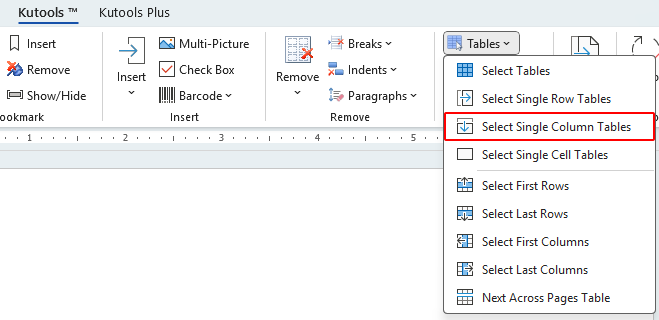
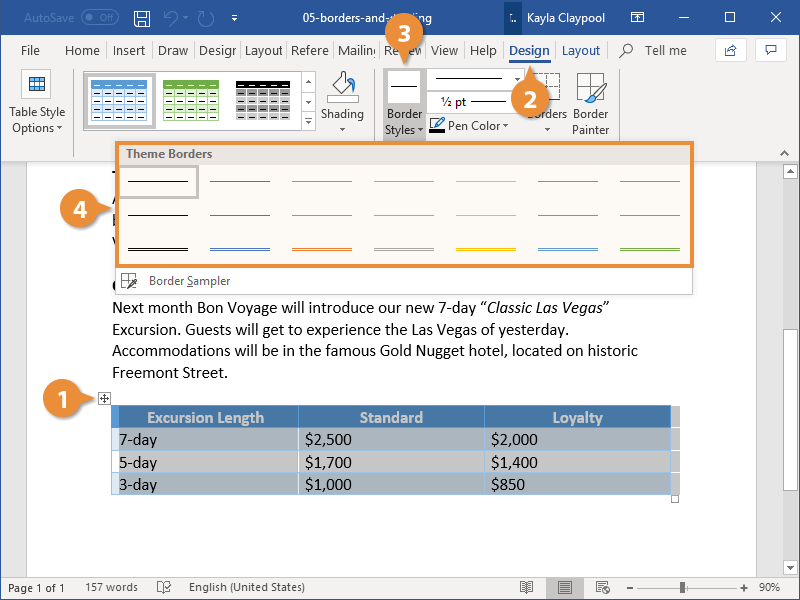
ഘട്ടങ്ങൾ:
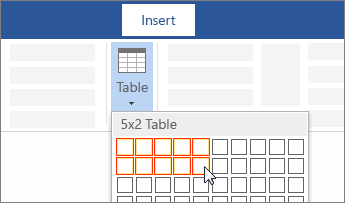
Insert → Table
1 × 1 Table തിരഞ്ഞെടുക്കുക
ആ സെല്ലിനുള്ളിൽ ടെക്സ്റ്റ് ടൈപ്പ് ചെയ്യുക
ആവശ്യമെങ്കിൽ ബോർഡർ കട്ടയും നിറവും മാറ്റാം
👉 Application forms, office formats എന്നിവയ്ക്ക് ഇത് നല്ലതാണ്.
ഏത് മാർഗം എപ്പോൾ ഉപയോഗിക്കണം?
| ആവശ്യകത | മികച്ച മാർഗം |
|---|---|
| ശ്രദ്ധേയമായ ടെക്സ്റ്റ് | Text Box |
| സാധാരണ പാരഗ്രാഫ് | Border |
| ഔദ്യോഗിക ഫോം | Table |
താഴെ MS Word – Text in a Box എന്ന വിഷയത്തിൽ പ്രാക്ടീസ് വർക്ക്ഷീറ്റ് (Practice Worksheet) നൽകുന്നു. ഇത് തുടക്കക്കാർക്ക് നേരിട്ട് പ്രാക്ടീസ് ചെയ്യാൻ അനുയോജ്യമായ രീതിയിലാണ് തയ്യാറാക്കിയിരിക്കുന്നത്.
📝 PRACTICE WORKSHEET
Topic: MS Word-ൽ Text Box, Border, Table ഉപയോഗിച്ച് ടെക്സ്റ്റ് ബോക്സിൽ ഇടൽ
✍️ Exercise 1: Text Box ഉപയോഗിച്ച്
Task:
MS Word തുറക്കുക
Insert → Text Box → Draw Text Box
ഒരു Text Box വരയ്ക്കുക
താഴെ കൊടുത്ത ടെക്സ്റ്റ് ടൈപ്പ് ചെയ്യുക:
WELCOME TO EXPLORE INTERNATIONAL
Skill Development & Language Training
Formatting Instructions:
Font: Arial
Font Size: 14
Text: Center align
Box Border: Blue
Shape Fill: No Fill
✅ Outcome: ഒരു നീല ബോർഡറുള്ള Text Box
✍️ Exercise 2: Paragraph Border ഉപയോഗിച്ച്
Task:
താഴെ കൊടുത്ത വാചകം ടൈപ്പ് ചെയ്യുക:
This certificate is awarded for successful completion of the course.
ടെക്സ്റ്റ് Select ചെയ്യുക
Home → Borders → Outside Borders
Extra Practice:
Borders → Borders and Shading
Border Style മാറ്റി നോക്കുക
✅ Outcome: ടെക്സ്റ്റിന്റെ ചുറ്റും ലളിതമായ ബോക്സ്
✍️ Exercise 3: Table ഉപയോഗിച്ച് Text Box
Task:
Insert → Table → 1×1
സെല്ലിനുള്ളിൽ താഴെ ടൈപ്പ് ചെയ്യുക:
Name:
Course:
Date:
Signature:
Table Design → Borders → Outside Borders
Extra Practice:
Row height കൂട്ടുക
Text vertically center ചെയ്യുക
✅ Outcome: ഫോം സ്റ്റൈൽ ബോക്സ്
✍️ Exercise 4: Mixed Practice (Office Task)
Scenario:
നിങ്ങൾ ഒരു Typing Centre Notice തയ്യാറാക്കുകയാണ്.
Task:
Heading – Text Box ഉപയോഗിക്കുക
Content – Paragraph Border ഉപയോഗിക്കുക
Heading Text:
IMPORTANT NOTICE
Content Text:
All students must bring their ID card during examination.
🧠 Self-Check Questions:
Text Box Insert ചെയ്യുന്നത് ഏത് Tab-ൽ നിന്ന്?
Border ഐക്കൺ കാണുന്നത് ഏത് Tab-ൽ?
Form തയ്യാറാക്കാൻ ഏത് മാർഗമാണ് മികച്ചത്?
🎯 Homework Task:
ഒരു Certificate Heading Text Box ഉപയോഗിച്ച് തയ്യാറാക്കുക
ഒരു Office Address Paragraph Border ഉപയോഗിച്ച് തയ്യാറാക്കുക
ഒരു Application Form Table ഉപയോഗിച്ച് തയ്യാറാക്കുക
Lesson-1: ഓപ്പറേറ്റിംഗ് സിസ്റ്റം മുതൽ ടാസ്ക്ബാർ വരെ, വിൻഡോസ് ഡിസ്പ്ലേ ഭാഷ ഇംഗ്ലീഷിലേക്ക് മാറ്റുന്നത്
MS Word-ൽ Date Format മാറ്റുന്നത് എങ്ങിനെ?
എം.എസ്. വേർഡ് (MS Word): ഹോം ടാബ് ഫീച്ചറുകൾ
MS Word-ലെ INSERT Menu-യിൽ വരുന്ന എല്ലാ പ്രധാന ഓപ്ഷനുകളും
സി.വി.യിൽ ചിത്രം ചേർക്കുന്നതിനുള്ള വഴികൾ
INR (Indian Rupee) ₹ ചിഹ്നം Word ലും Excel ലും എങ്ങിനെ ടൈപ്പ് ചെയ്യാം
MS Word – “Design” ടാബ്: പൂർണ്ണ പാഠം
MS Word: പേജ് ലേഔട്ട് മെനു (Page Layout Menu)
MS WORD – SHORTCUT KEYS & WINDOWS – SHORTCUT KEYS
Google Docs – ഒരു പരിചയം, എന്താണ് Google Docs?
Google Sheets – ഒരു പരിചയം What is Google Sheets?
Google Forms – ഗൂഗിൾ ഫോംസ്: വിവര ശേഖരണത്തിനുള്ള ലളിതമായ ഉപകരണം
AI Tools – ഒരു പരിചയം, ChatGPT എന്താണ്? Prompt എന്നത് എന്താണ്?
Gmail എന്താണ്? (What is Gmail?) Gmail സംബന്ധിച്ച വിശദമായ സ്റ്റഡി നോട്ട്സ്
Comments
Post a Comment