Windows Taskbar എന്നത് എന്താണ്?
🖥️ Taskbar എന്നത് എന്താണ്?
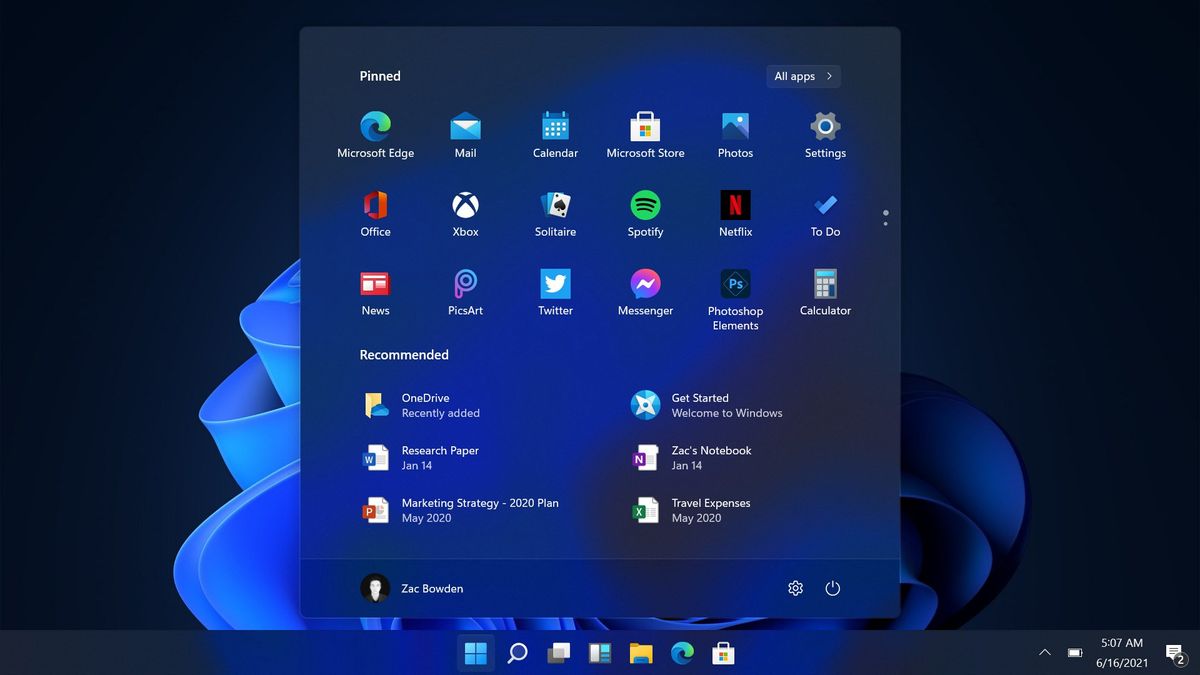
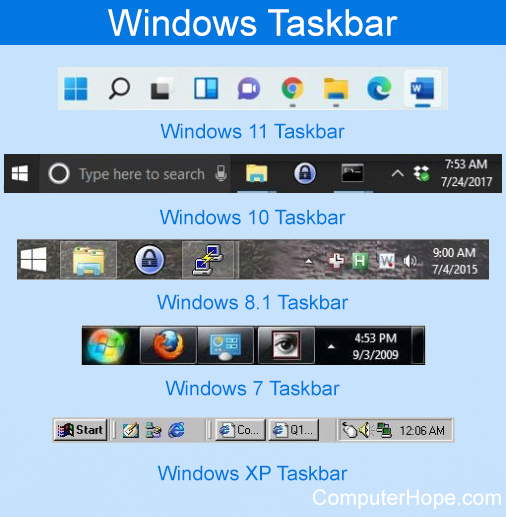
Taskbar എന്നത് Windows കമ്പ്യൂട്ടറിന്റെ സ്ക്രീനിന്റെ താഴെഭാഗത്ത് കാണുന്ന നീളമുള്ള പട്ടിയാണ്.
ഇത് ഉപയോഗിക്കുന്നത്:
തുറന്നിരിക്കുന്ന Apps കാണാൻ
പുതിയ Apps തുറക്കാൻ
സമയം, ഭാഷ, നെറ്റ്വർക്ക് തുടങ്ങിയ വിവരങ്ങൾ കാണാൻ
സാധാരണയായി ഇത് സ്ക്രീന്റെ താഴെ കാണും. (മുകളിലേക്കോ വശങ്ങളിലേക്കോ മാറ്റാനും കഴിയും)
🎯 Taskbar ഉപയോഗങ്ങൾ
🔹 1. Start Menu തുറക്കാൻ
Windows ലോഗോ (Start button) ക്ലിക്ക് ചെയ്താൽ എല്ലാ Programs കാണാം.
🔹 2. Apps തുറക്കാൻ
Pinned apps നേരിട്ട് ക്ലിക്ക് ചെയ്താൽ തുറക്കും.
🔹 3. Open Apps കാണാൻ
തുറന്നിരിക്കുന്ന Apps underline ആയി കാണിക്കും.
🔹 4. System Information
വലത് ഭാഗത്ത് കാണുന്നത്:
🕒 Time & Date
🔊 Volume
🌐 Network
🔋 Battery (Laptop)
📌 Taskbar-ലേക്ക് Apps Pin ചെയ്യുന്നത് എങ്ങനെ?
Method 1: Start Menu വഴി
Start button ക്ലിക്ക് ചെയ്യുക
App search ചെയ്യുക (ഉദാ: Word)
App-ൽ Right Click
“📌 Pin to taskbar” തിരഞ്ഞെടുക്കുക
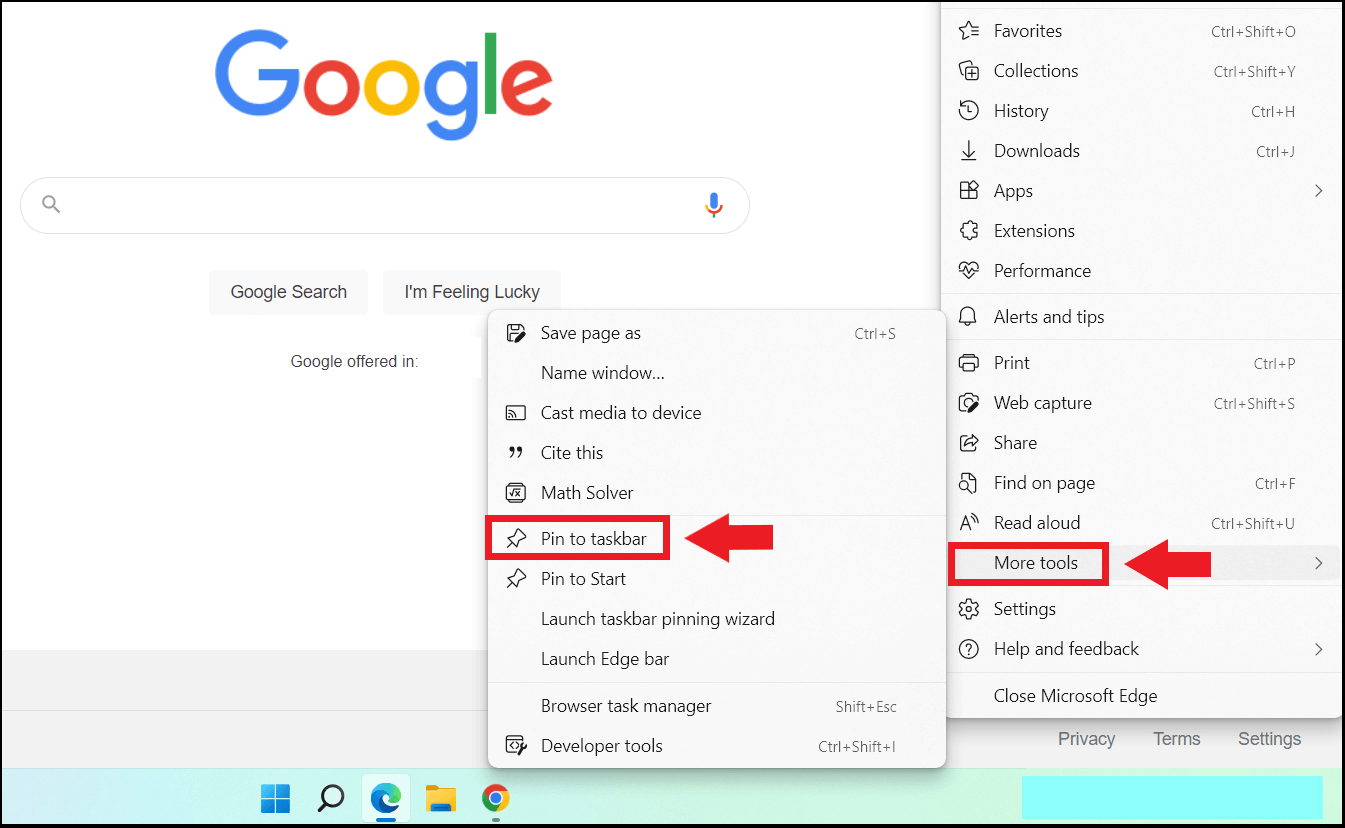
Method 2: Open ചെയ്ത App വഴി
App open ചെയ്യുക
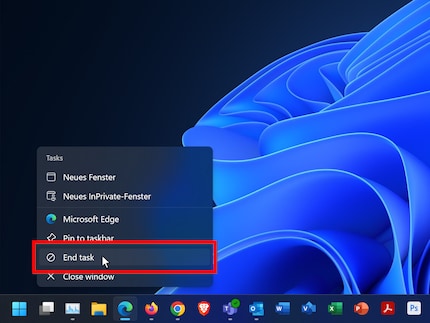
Taskbar-ൽ App icon-ൽ Right click
“Pin to taskbar” ക്ലിക്ക് ചെയ്യുക

❌ App Unpin ചെയ്യാൻ
Taskbar icon-ൽ Right Click
“Unpin from taskbar” ക്ലിക്ക് ചെയ്യുക
🔰 Taskbar-ൽ Default Symbols (സാധാരണ കാണുന്ന ഐക്കണുകൾ)
| Symbol | ഉപയോഗം |
|---|---|
| 🪟 Start | Programs തുറക്കാൻ |
| 🔍 Search | File / App തിരയാൻ |
| 📁 File Explorer | Files തുറക്കാൻ |
| 🌐 Edge / Chrome | Internet |
| 🗂️ Task View | Open windows കാണാൻ |
| 🔊 Volume | ശബ്ദം നിയന്ത്രിക്കാൻ |
| 🌐 Network | WiFi / Internet |
| 🕒 Time & Date | സമയം |

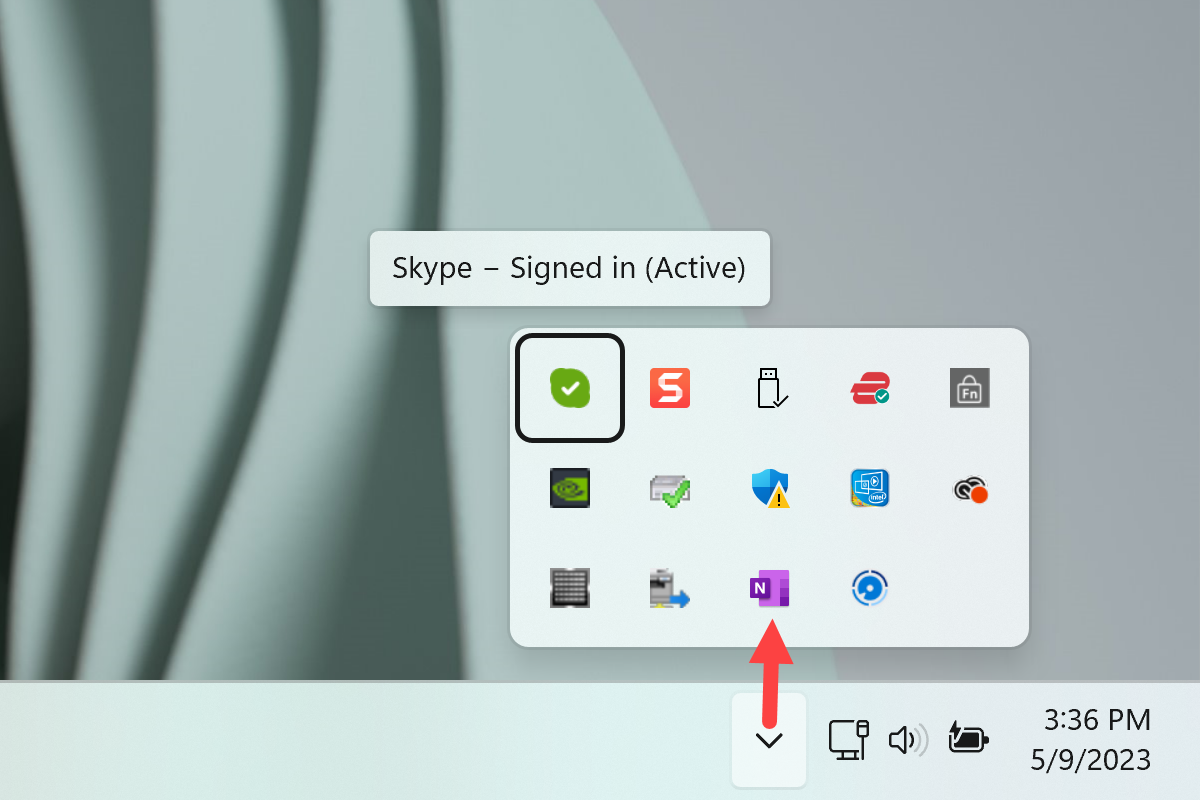
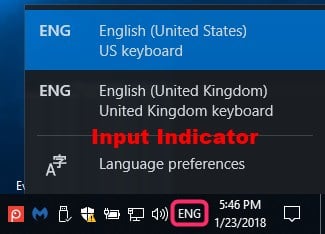
🌍 Language Change Icon (ഭാഷ മാറ്റുന്ന ഐക്കൺ)
Taskbar-ന്റെ വലത് ഭാഗത്ത് ENG / IND / MAL / AR എന്ന രീതിയിൽ കാണുന്ന ഐക്കൺ ആണ് Language Indicator.
ഉപയോഗം:
Keyboard language മാറ്റാൻ
English → Malayalam
English → Arabic
മാറ്റുന്ന വിധം:
Method 1:
Language icon ക്ലിക്ക് ചെയ്യുക
ആവശ്യമുള്ള ഭാഷ തിരഞ്ഞെടുക്കുക
Method 2:
Keyboard shortcut:
👉 Alt + Shift
👉 Windows + Space
⚙️ Taskbar Settings തുറക്കാൻ
Taskbar-ൽ blank area-ൽ Right click
“Taskbar settings” തിരഞ്ഞെടുക്കുക
അവിടെ:
Taskbar alignment മാറ്റാം (Left / Center)
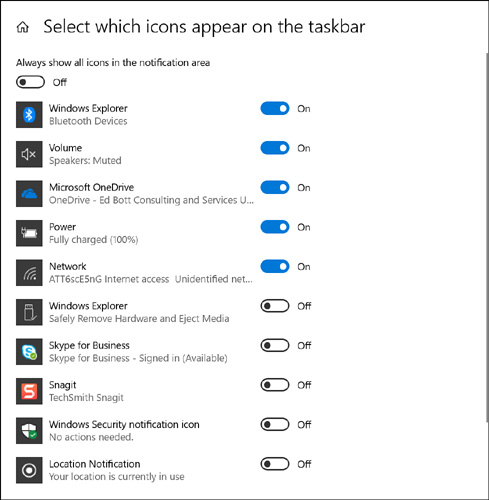
Icons show/hide ചെയ്യാം
Auto hide ചെയ്യാം
📘 Classroom Practice Activity
✔ Students:
Word & Excel pin ചെയ്യുക
Language change practice ചെയ്യുക
Taskbar alignment മാറ്റുക
Screenshot എടുത്ത് submit ചെയ്യുക
Lesson-1: ഓപ്പറേറ്റിംഗ് സിസ്റ്റം മുതൽ ടാസ്ക്ബാർ വരെ, വിൻഡോസ് ഡിസ്പ്ലേ ഭാഷ ഇംഗ്ലീഷിലേക്ക് മാറ്റുന്നത്
MS Word-ൽ Date Format മാറ്റുന്നത് എങ്ങിനെ?
എം.എസ്. വേർഡ് (MS Word): ഹോം ടാബ് ഫീച്ചറുകൾ
MS Word-ലെ INSERT Menu-യിൽ വരുന്ന എല്ലാ പ്രധാന ഓപ്ഷനുകളും
സി.വി.യിൽ ചിത്രം ചേർക്കുന്നതിനുള്ള വഴികൾ
MS Word-ൽ ടെക്സ്റ്റ് ഒരു ബോക്സിനുള്ളിൽ എഴുതാൻ How to type a Text in a Box in MS Word
INR (Indian Rupee) ₹ ചിഹ്നം Word ലും Excel ലും എങ്ങിനെ ടൈപ്പ് ചെയ്യാം
MS Word – “Design” ടാബ്: പൂർണ്ണ പാഠം
MS Word: പേജ് ലേഔട്ട് മെനു (Page Layout Menu)
MS WORD – SHORTCUT KEYS & WINDOWS – SHORTCUT KEYS
Google Docs – ഒരു പരിചയം, എന്താണ് Google Docs?
Google Sheets – ഒരു പരിചയം What is Google Sheets?
Google Forms – ഗൂഗിൾ ഫോംസ്: വിവര ശേഖരണത്തിനുള്ള ലളിതമായ ഉപകരണം
AI Tools – ഒരു പരിചയം, ChatGPT എന്താണ്? Prompt എന്നത് എന്താണ്?
Gmail എന്താണ്? (What is Gmail?) Gmail സംബന്ധിച്ച വിശദമായ സ്റ്റഡി നോട്ട്സ്
ATS Friendly CV എന്നത് എന്താണ്? How to create ATS friendly CV?
Google Sheets-ൽ / Excel-ൽ Row 2 (രണ്ടാം വരി) മുതൽ Serial Number തുടങ്ങാൻ
MS Paint ൽ ഫോട്ടോ 1500 × 1000 Pixels ആക്കി മാറ്റുന്നത്

Comments
Post a Comment