MS Word → File → Options, Word-ന്റെ പ്രധാന Settings Control Panel, How to set Arabic digits?
📘 MS Word – File Menu → Options (വിശദമായ പാഠം)
MS Word → File → Options എന്നതാണ് Word-ന്റെ പ്രധാന Settings Control Panel.
ഇവിടെ നമുക്ക് Word-ന്റെ പെരുമാറ്റം (Behavior), Language, Save format, Security, Ribbon customization എന്നിവ നിയന്ത്രിക്കാം.
🔹 File → Options എങ്ങനെ തുറക്കാം?
MS Word തുറക്കുക
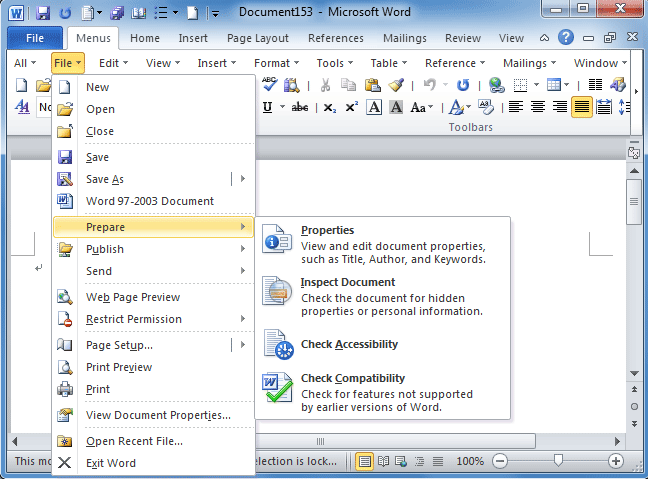
മുകളിൽ File ക്ലിക്ക് ചെയ്യുക
ഇടത് വശത്ത് താഴേക്ക് Options ക്ലിക്ക് ചെയ്യുക
Word Options Window തുറക്കും
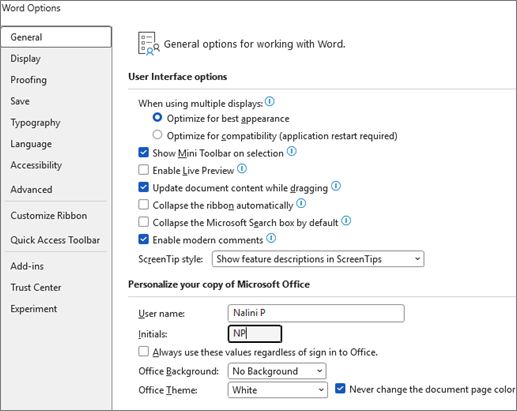
1️⃣ General (സാധാരണ ക്രമീകരണങ്ങൾ)
Word-ന്റെ അടിസ്ഥാന രൂപം & പ്രവർത്തനം നിയന്ത്രിക്കുന്ന ഭാഗം
പ്രധാന Options:
🔹 User Interface Options
Office Theme (Color theme)
Colorful
Dark Gray
Black
White
🔹 User Name
Author name change ചെയ്യാം
(Comments / Track Changes-ൽ കാണുന്ന പേര്)
🔹 Start Up Options
Word തുറക്കുമ്പോൾ Start screen കാണിക്കണോ വേണ്ടയോ
📌 Training tip: Office environment-ൽ theme standardize ചെയ്യാൻ ഉപയോഗിക്കാം.
2️⃣ Display (കാഴ്ച ക്രമീകരണങ്ങൾ)
🔹 Show these formatting marks
Paragraph mark (¶)
Tab marks
Hidden text
🔹 Always show these regardless of formatting
Spaces
Object Anchors
🔹 Printing Options
Background colors print ചെയ്യണോ
Hidden text print ചെയ്യണോ
📌 Proof reading & formatting training-ൽ ഏറെ പ്രാധാന്യമുള്ള വിഭാഗം
3️⃣ Proofing (Spelling & Grammar)
🔹 AutoCorrect Options
Typing mistakes auto correct ചെയ്യുന്നു
teh → the
recieve → receive
🔹 Spelling & Grammar Check
Type ചെയ്യുമ്പോൾ red underline
Grammar mistakes green underline
🔹 Exceptions
Specific document-ൽ proofing off ചെയ്യാം
📌 Academic document തയ്യാറാക്കുമ്പോൾ നിർബന്ധമായും enable വേണം
4️⃣ Save (File Save Settings)
🔹 Default Save Location
File save ചെയ്യുന്ന default folder മാറ്റാം
🔹 Save AutoRecover Information
X minutes-ൽ auto save
System crash ആയാൽ recover ചെയ്യാൻ
🔹 Save Format
Default format:
.docx
.doc (old version)
.pdf
📌 Office SOP-ൽ default format .docx ആയി വെക്കുന്നത് നല്ലത്
5️⃣ Language (Language Settings)
🔹 Office Display Language
Word interface language മാറ്റാം
🔹 Editing Language
English
Arabic
Malayalam (if installed)
📌 Language add ചെയ്യാൻ:
Add a Language ക്ലിക്ക് ചെയ്യുക
Install ചെയ്യുക
🔢 Arabic Type ചെയ്യുമ്പോൾ Arabic Digits കാണിക്കാൻ
ഇത് വളരെ പ്രധാനമാണ് (പ്രത്യേകിച്ച് Gulf documentation-ൽ)
🔹 Method:
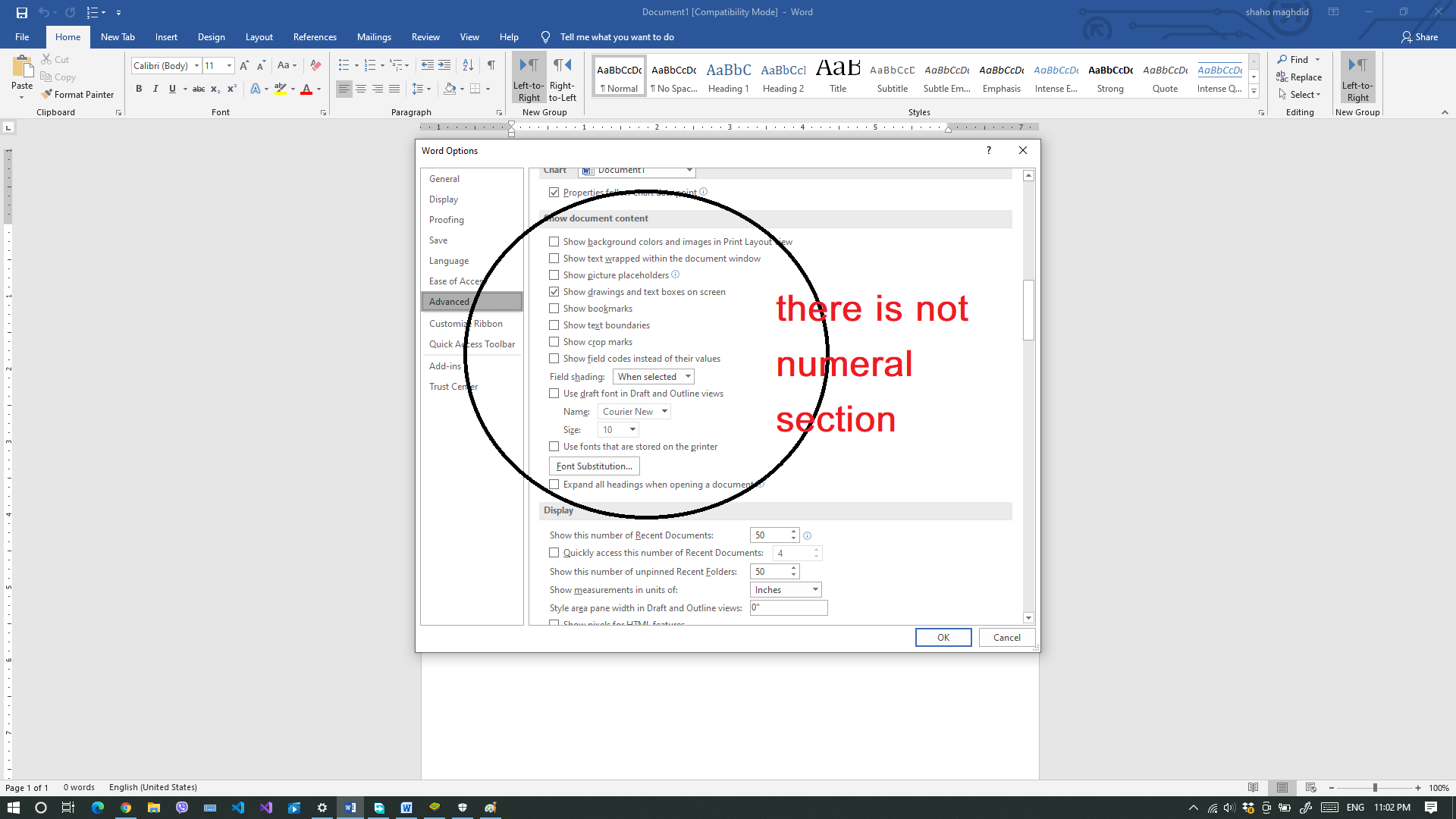
File → Options → Advanced
Scroll ചെയ്യുക → Show document content
“Numeral” എന്ന option കാണാം
Options:
| Option | Meaning |
|---|---|
| Arabic | 1 2 3 |
| Hindi | ١ ٢ ٣ |
| Context | Language അനുസരിച്ച് മാറും |
👉 Arabic documents-ൽ Arabic digits (١٢٣) വേണമെങ്കിൽ:
Numeral → Hindi select ചെയ്യുക

📌 Gulf official letters-ൽ ഇത് വളരെ ഉപയോഗപ്രദം.
6️⃣ Advanced (Advanced Settings)
ഇത് വളരെ വലിയ വിഭാഗമാണ്.
🔹 Editing Options
Drag and drop editing
Ctrl + Click hyperlink
🔹 Cut, Copy & Paste Settings
Keep source formatting
Merge formatting
Keep text only
🔹 Show Document Content
Field shading
Numeral (Arabic digits setting)
🔹 Display
Show pixels in Drawing objects
📌 Professional documentation-ൽ paste behavior control ചെയ്യാൻ പ്രധാനമാണ്.
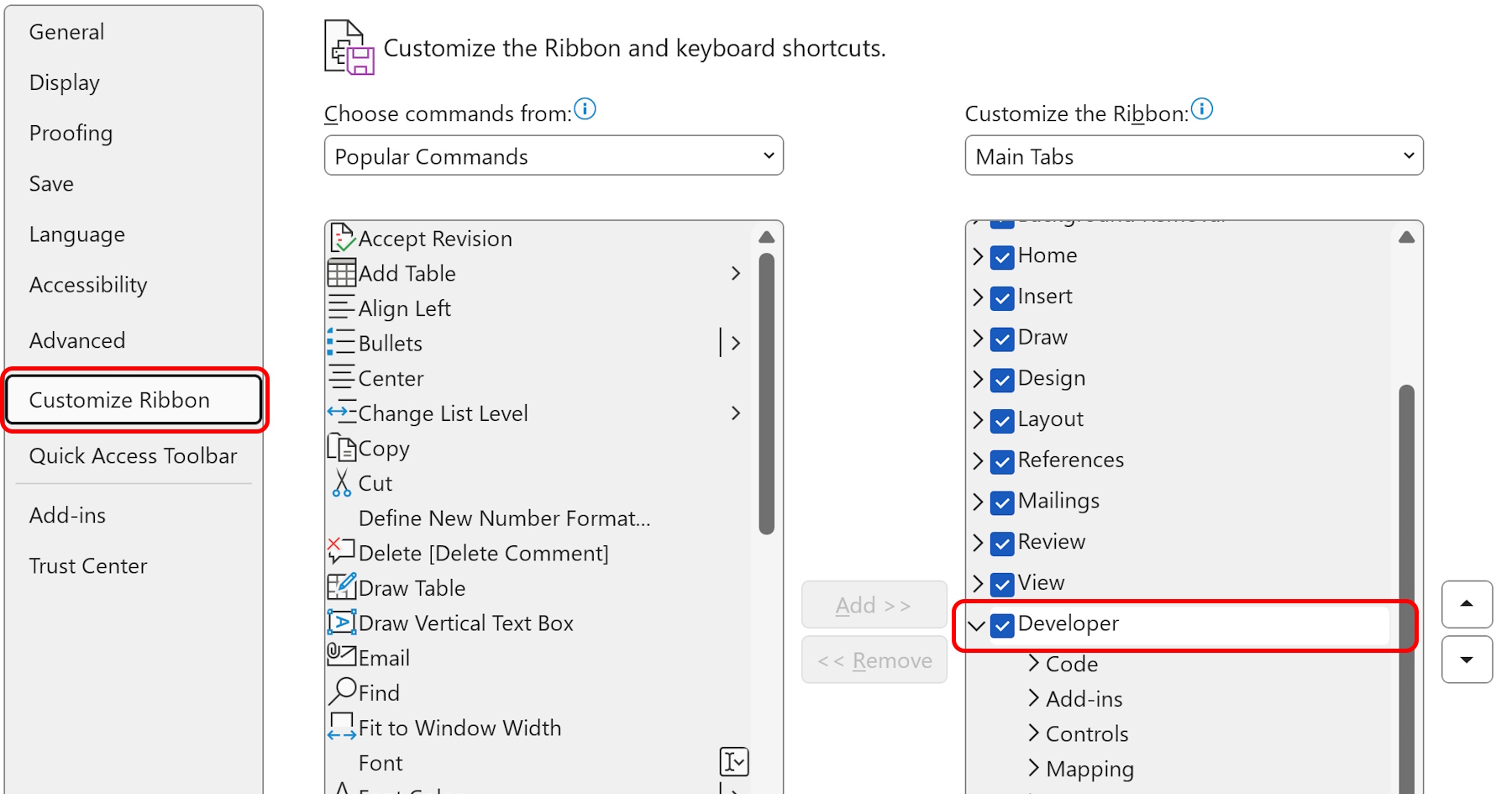
7️⃣ Customize Ribbon
Ribbon-ൽ കാണുന്ന Tabs customize ചെയ്യാം.
🔹 Example:
Developer tab show ചെയ്യാൻ:
Customize Ribbon → Developer tick ചെയ്യുക
🔹 New Tab create ചെയ്യാം
New Group create ചെയ്യാം
Commands add/remove ചെയ്യാം
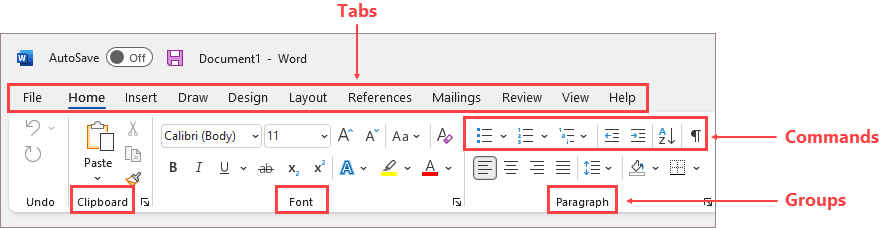
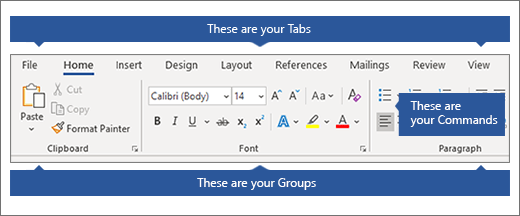
📌 Training centre-ൽ frequently used tools custom tab ആയി ചേർക്കാം.
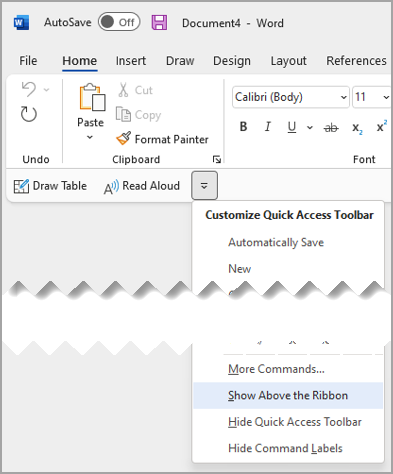
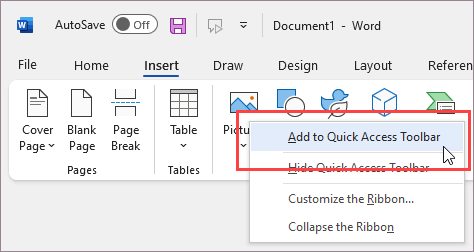
8️⃣ Quick Access Toolbar (QAT)
Screen-ന്റെ മുകളിൽ ചെറിയ toolbar ആണ്.
സാധാരണ icons:
Save
Undo
Redo
Customize ചെയ്യാൻ:
File → Options → Quick Access Toolbar
Command select ചെയ്യുക
Add → OK
📌 Example:
Print preview
Email
Track Changes
9️⃣ Add-ins
Add-ins എന്നത് Word-ൽ അധിക feature add ചെയ്യുന്ന software ആണ്.
Examples:
Grammarly
PDF Converter
Translation tools
Manage ചെയ്യാൻ:
File → Options → Add-ins
Manage → Go
📌 Office automation-ൽ Add-ins manage ചെയ്യുന്നത് പ്രധാനമാണ്.
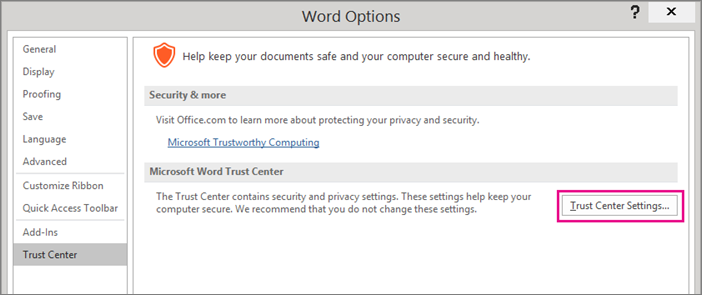
🔟 Trust Center (Security Control)
ഇത് Word-ന്റെ security section ആണ്.
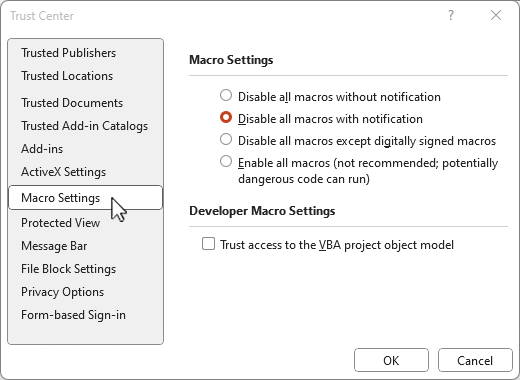
🔹 Macro Settings
Macro enable / disable
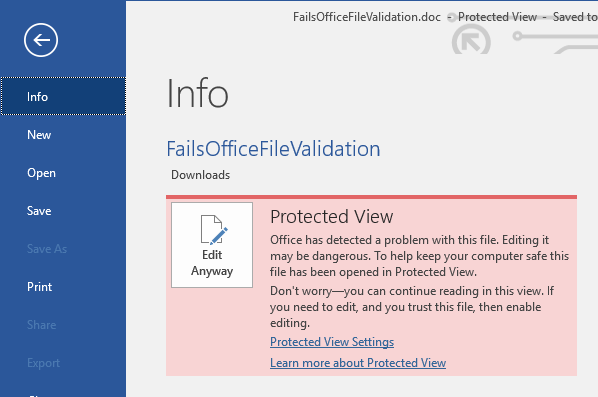
🔹 Protected View
Internet-ൽ നിന്നുള്ള file safe mode-ൽ open ചെയ്യും
🔹 Trusted Locations
Safe folder define ചെയ്യാം
🔹 Privacy Settings
📌 Government / Gulf documentation-ൽ macro security ശ്രദ്ധിക്കണം.
📊 Summary Table
| Section | പ്രധാന ഉപയോഗം |
|---|---|
| General | Appearance & User name |
| Display | Formatting marks |
| Proofing | Spelling & Grammar |
| Save | Auto save & format |
| Language | Editing language |
| Advanced | Numeral & paste behavior |
| Customize Ribbon | Tabs modify ചെയ്യാൻ |
| Quick Access Toolbar | Shortcuts add ചെയ്യാൻ |
| Add-ins | Extra tools |
| Trust Center | Security |
Lesson-1: ഓപ്പറേറ്റിംഗ് സിസ്റ്റം മുതൽ ടാസ്ക്ബാർ വരെ, വിൻഡോസ് ഡിസ്പ്ലേ ഭാഷ ഇംഗ്ലീഷിലേക്ക് മാറ്റുന്നത്
Windows Taskbar എന്നത് എന്താണ്?
MS Word-ൽ Date Format മാറ്റുന്നത് എങ്ങിനെ?
എം.എസ്. വേർഡ് (MS Word): ഹോം ടാബ് ഫീച്ചറുകൾ
MS Word-ലെ INSERT Menu-യിൽ വരുന്ന എല്ലാ പ്രധാന ഓപ്ഷനുകളും
സി.വി.യിൽ ചിത്രം ചേർക്കുന്നതിനുള്ള വഴികൾ
MS Word-ൽ ടെക്സ്റ്റ് ഒരു ബോക്സിനുള്ളിൽ എഴുതാൻ How to type a Text in a Box in MS Word
INR (Indian Rupee) ₹ ചിഹ്നം Word ലും Excel ലും എങ്ങിനെ ടൈപ്പ് ചെയ്യാം
MS Word – “Design” ടാബ്: പൂർണ്ണ പാഠം
MS Word: പേജ് ലേഔട്ട് മെനു (Page Layout Menu)
MS WORD – SHORTCUT KEYS & WINDOWS – SHORTCUT KEYS
Google Docs – ഒരു പരിചയം, എന്താണ് Google Docs?
Google Sheets – ഒരു പരിചയം What is Google Sheets?
Google Forms – ഗൂഗിൾ ഫോംസ്: വിവര ശേഖരണത്തിനുള്ള ലളിതമായ ഉപകരണം
AI Tools – ഒരു പരിചയം, ChatGPT എന്താണ്? Prompt എന്നത് എന്താണ്?
Gmail എന്താണ്? (What is Gmail?) Gmail സംബന്ധിച്ച വിശദമായ സ്റ്റഡി നോട്ട്സ്
ATS Friendly CV എന്നത് എന്താണ്? How to create ATS friendly CV?
Google Sheets-ൽ / Excel-ൽ Row 2 (രണ്ടാം വരി) മുതൽ Serial Number തുടങ്ങാൻ
MS Paint ൽ ഫോട്ടോ 1500 × 1000 Pixels ആക്കി മാറ്റുന്നത്

Comments
Post a Comment